Would you like your smartphone to have ann app button that goes directly to the ECMensGolfClub.com? Looking like the following.
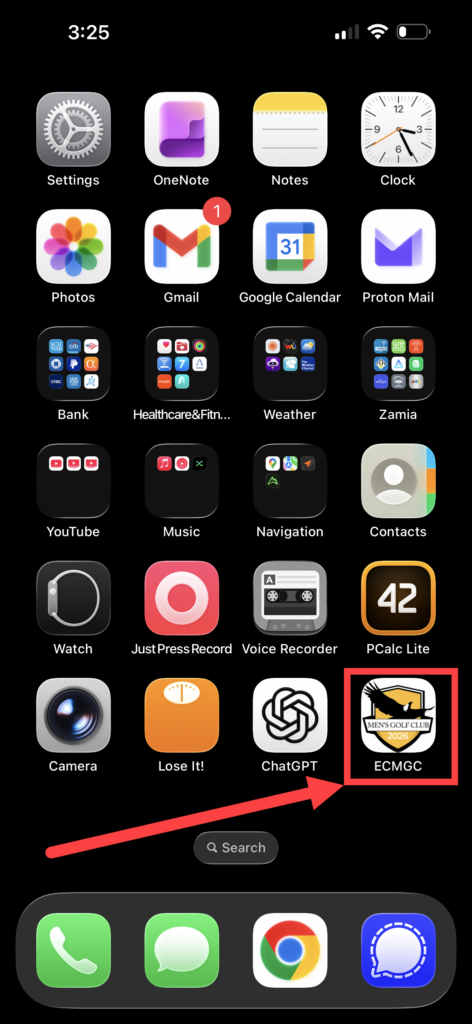
Well Here is how to do it
Getting the icon depends slightly based on what browser you are using on your phone. It is basically the same idea for all of the three most common browsers.
- Apple Safari
- Google Chrome
- Microsoft Edge
Instructions (find pictures below)
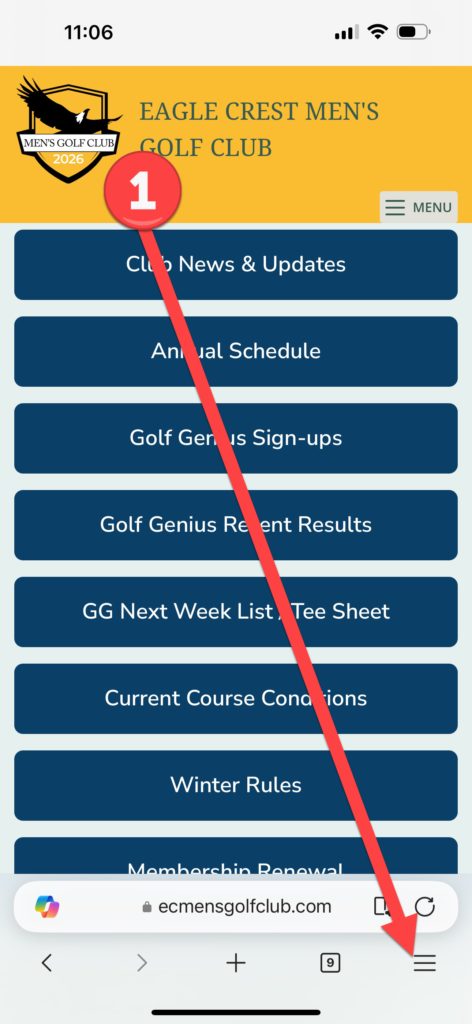
- Open the website in a browser window on your phone
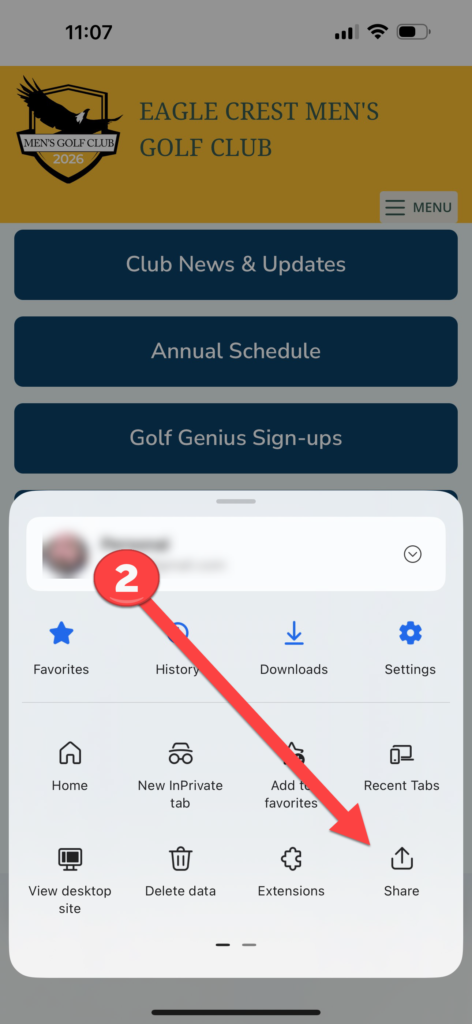
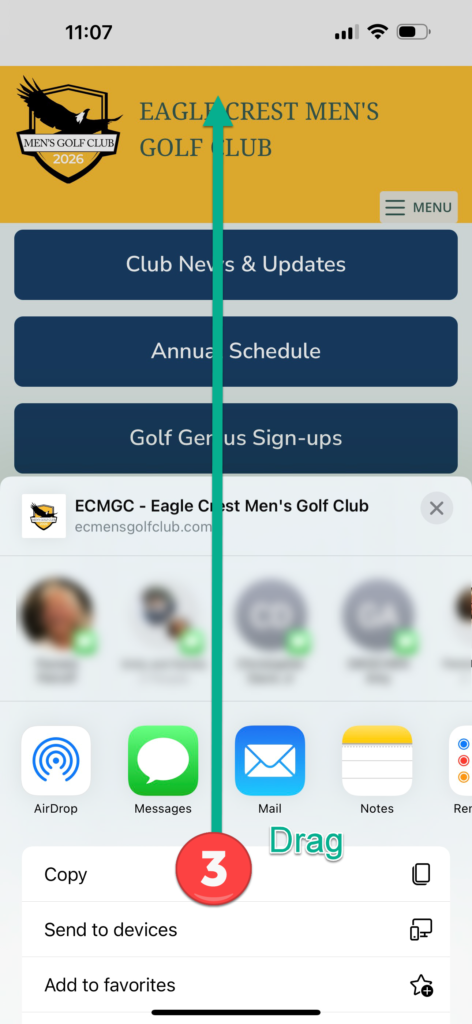
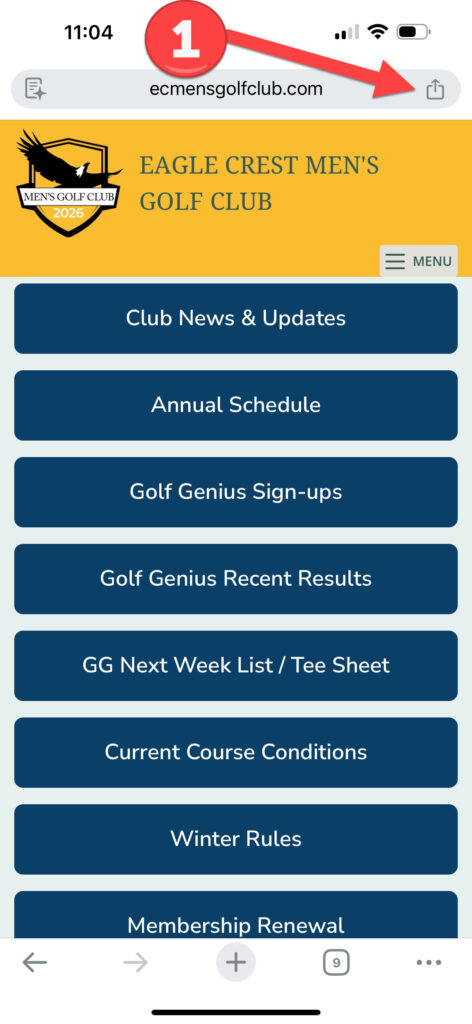
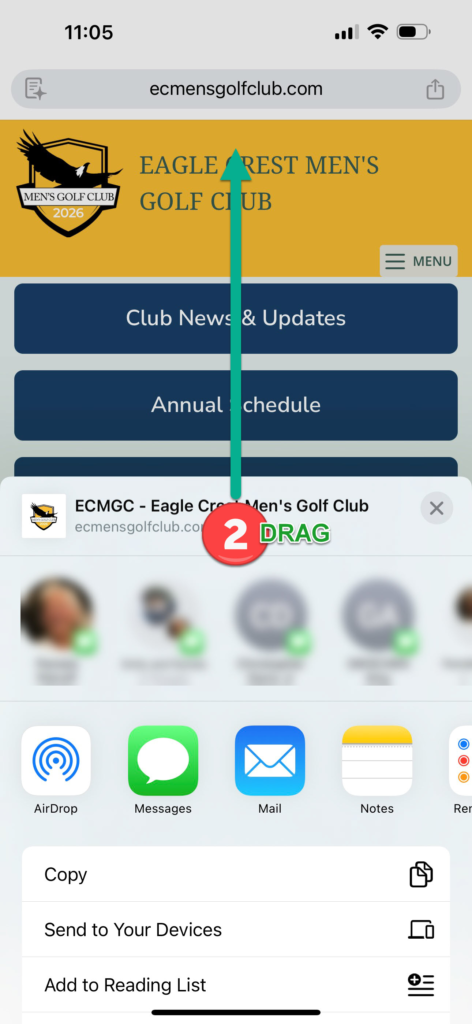
- Find the share icon. Looks like a little box with an up arrow. Each browser tucks the little share icon in a different place. Once you find the “share” icon, click it.
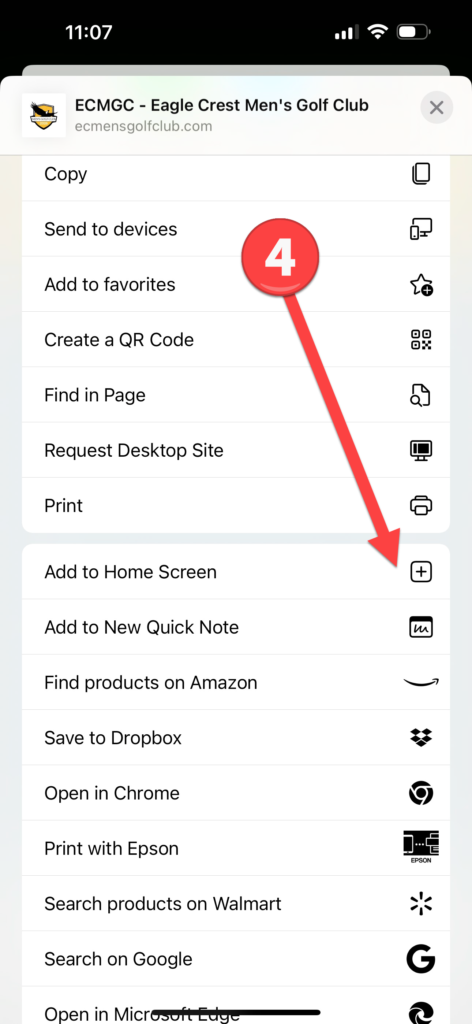
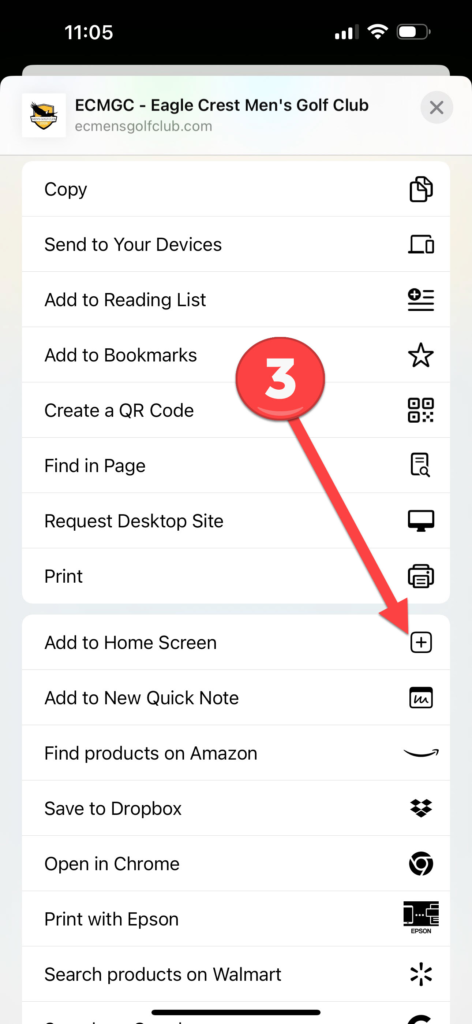
- Now a screen should open up. Asking where you want to share it. You then need to scroll down and find an option that says something like “Add to Home Screen”, or “Share with Home Screen” and select this option.
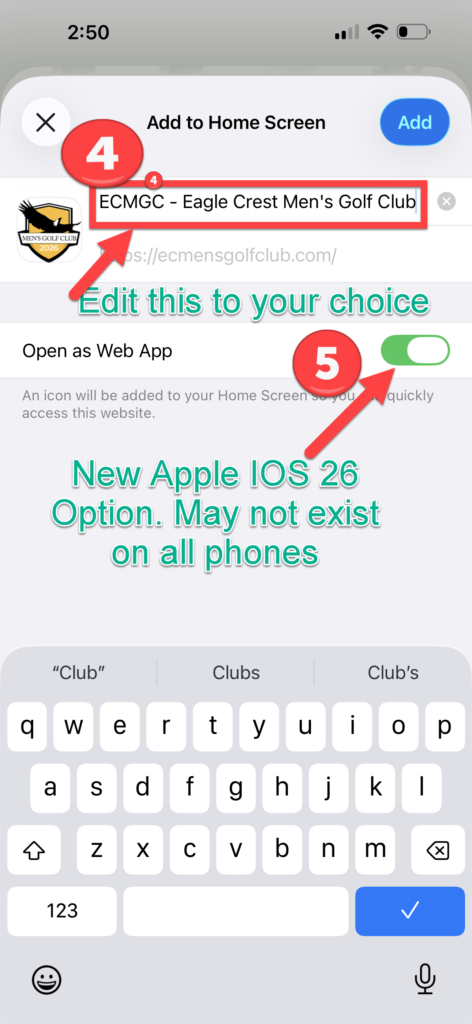
- Before finalizing, optionally edit the text. This text will be what displays as the app name on your smartphone and you probably just want the app text to just be “ECMGC”.
- You can then click Add to add the website to your home screen.
- Note:
The most recent Apple IOS 26 update has an option to “Open as Web App” which you may prefer. (see screen shot below) This is pretty cool because the web page opens without appearing to be inside a web browser.
The downside of acting as a “Web App” is there will be not be conventional browser “back” button so once you have the app open in “Open as Web App” mode ALL navigation has to be through the menus or by clicking the top logo to return to the Quick Access Buttons
After following these steps an icon linking to the web site will now be somewhere on your smartphone screen. You can then move the icon using regular phone methods for moving icons around.
If after you install the button on your home screen you don’t like the App Description or you don’t like the “Open as Web App” functionality the solution is to delete the button and start over and add it back the way you like it.
Now you have one-click access to ECMensGolfClub.com website, and from there you have one-click access via the Quick Access Buttons to the most popular links for News, Golf Genius and Course Conditions.
Special Note for Users of Apple Safari
Very rarely, Apple Safari is unable to load ECMensGolfClub.com. This turns out to be a weird Apple problem that seems impossible to resolve. If this happens to you I can only suggest trying to use Google Chrome or Microsoft Edge as your phone browser specifically for accessing ECMensGolfClub.com.
Google Chrome Screen Shots
Microsoft Edge Screen Shots